How to Setup TikTok Pixel on Shopify, WooCommerce, and Other Platforms (2026 Guide)
If you are running TikTok Ads for your e-commerce store, there is one tool you absolutely cannot skip: the TikTok Pixel.
Without it, you are essentially flying blind. You won’t know which ad creatives actually generate sales, which audiences are adding products to their carts, or how to optimize your budget for maximum Return on Ad Spend (ROAS).
In this step-by-step guide, we will walk you through how to set up the TikTok Pixel on Shopify, WooCommerce, and other popular platforms so you can start tracking conversions like a pro.
How to Setup TikTok Pixel with Shopify
Shopify has one of the most seamless integrations with TikTok. By using the official TikTok app, you can install your pixel with just a few clicks without touching any custom code.
Step 1: Install the TikTok App
-
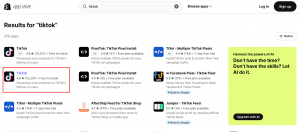
Access the Shopify App Store and search for “TikTok“.
-
Select the official TikTok app developed by TikTok Inc. and click Install.
Step 2: Connect Your Accounts
-
Once installed, open the app in your Shopify admin panel.
-
Connect your TikTok For Business account.
-
Next, link your specific TikTok Ad Account where you plan to run your campaigns.
Step 3: Create & Link Your Pixel
-
Under the data sharing settings, click Create Pixel to generate a brand-new pixel, or select an existing active pixel from the dropdown list to connect.
-
Choose your preferred level of data sharing (Standard, Enhanced, or Maximum) to optimize your matching accuracy.
💡 Need more help? For a deeper dive into this integration, check out the detailed Shopify Setup Guide.
How to Setup TikTok Pixel with WooCommerce
Integrating TikTok with WooCommerce allows you to automatically sync your product catalog and track events on your WordPress-powered store.
Before Getting Started:
⚠️ Important Note on Availability: The TikTok x WooCommerce integration is not yet supported in all global markets. Before proceeding, go to your WooCommerce platform and check for country availability under the “Details and compatibility” tab.
Step-by-Step Setup:
-
Navigate to the Marketing section on your WooCommerce sidebar or search for the official TikTok extension in the WooCommerce Extension Marketplace.
-
Download, install, and activate the extension.
-
Click Connect Account and log in using your TikTok Business Center credentials.
-
Fill in and authorize all required TikTok asset information (Business Center, Ad Account, and Store country).
-
Generate or select your TikTok Pixel to complete the tracking integration.
💡 Need more help? Read the official integration documentation here.
How to Setup TikTok Pixel on Other Platforms
If you are not using Shopify or WooCommerce, don’t worry. TikTok provides flexible integration methods for custom websites and alternative e-commerce platforms.
Integrate TikTok Pixel on ShopBase
ShopBase is another popular e-commerce platform that offers native integration with TikTok Ads. You can easily paste your Pixel ID into the platform settings to track purchases, checkout starts, and product views.
-
Learn how to set it up step-by-step in the ShopBase Integration Guide.
Manual Setup on Custom Websites
If you are running a custom-built website, you can easily install the TikTok Pixel manually by copying the base pixel code from your TikTok Ads Manager and placing it directly into your website’s header..
-
Select your preferred manual connection method
-
Create and name your pixel. All the events sent to this Pixel Code will show up under this Pixel. We recommend creating a pixel name that corresponds to your website or domain name. The maximum character length is 128 characters, including spaces
-
Install the base code onto your website
-
Manage configurations and desired settings
-
Get the full manual installation script and instructions here.
Final Thoughts: What’s Next?
Setting up your TikTok Pixel is the crucial first step to unlocking advanced ad features like Value-Based Optimization (VBO), retargeting, and lookalike audiences.
Once your pixel is active and successfully tracking events, you can dive deeper into optimizing your campaigns. Learn more about the essential tools at your disposal in the TikTok Business Help Center to maximize your advertising performance!